If you’re searching for Canva book cover templates or wondering how to design a professional book cover in Canva for Amazon KDP, this guide will walk you through everything step by step.
Your book cover is not just artwork.
Table of Contents
It’s your first impression.
Your visual branding.
Your conversion tool.
And in the competitive world of self-publishing, a weak cover will quietly kill your sales.
In this complete guide, you’ll learn:
- How to design a book cover in Canva
- The typography rules professionals follow
- How to make your cover stand out on Amazon
- Common mistakes self-published authors make
- Why structured book cover templates save time and improve quality
Why Canva Is a Powerful Tool for Book Cover Design
Many authors ask:
“Can I design a professional book cover using Canva?”
Yes — but only if you understand structure.
Canva is powerful because it offers:
- Custom dimensions for Amazon KDP
- Thousands of fonts
- Built-in grids and alignment tools
- Easy export for print and ebook formats
The problem isn’t Canva.
The problem is designing without a system.
How to Design a Book Cover in Canva (Step-by-Step for Amazon KDP)

Step 1: Set the Correct KDP Cover Size
Before designing your book cover for Amazon KDP, you must determine:
- Trim size (e.g., 6×9, 5×8, etc.)
- Spine width (based on page count)
- Bleed settings
For ebook covers, a strong starting dimension is 1600 x 2560 px.
Using the wrong dimensions is one of the most common KDP cover design mistakes.
Step 2: Establish Clear Typography Hierarchy

Professional book cover design starts with typography.
Typography is the single most important element of your book cover. Before readers notice your imagery, they read your title. This guide will show you how to structure, pair, and style fonts like a professional designer.

Here are the 5 essential rules used in high-performing Canva book cover templates:
1. Hierarchy
Your title must dominate visually.
Your subtitle supports.
Your author name complements.
Clear hierarchy improves readability at thumbnail size.
2. Limit Your Fonts
Use 1–2 fonts only.
Too many fonts immediately signal amateur design.
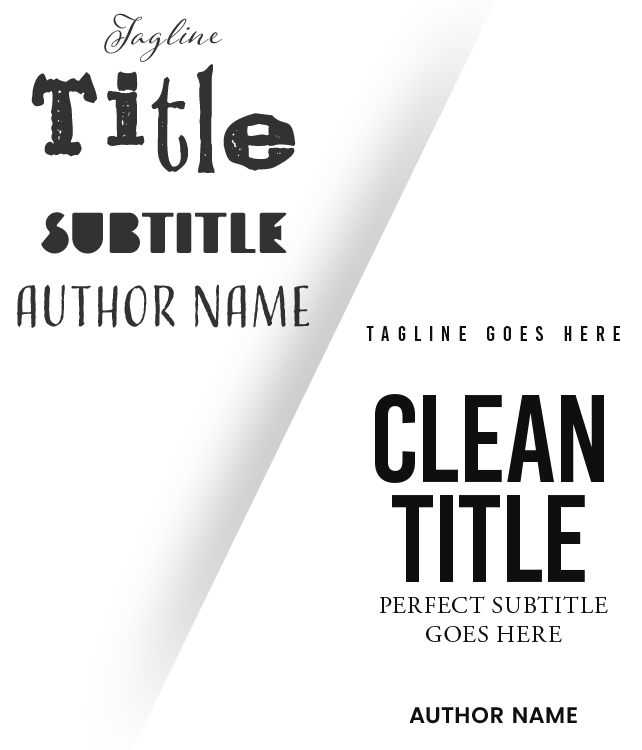
Professional book cover templates are built around controlled font systems.
3. Use Strong Contrast
Contrast can be created through:
- Size differences
- Font weight
- Color shifts
- Background overlays
Without contrast, your cover blends into the Amazon search page.
4. Adjust Line Height and Spacing
Default spacing in Canva is rarely optimized.
Tighten spacing for bold, compact titles.
Increase spacing for elegant, premium looks.
Spacing separates amateur from professional design.
5. Maintain Clean Alignment
Alignment creates visual order.
Choose either:
- Center alignment (formal, classic)
- Left alignment (modern, strong)
Random alignment destroys visual credibility.
How to Choose the Right Fonts for Your Genre
When designing a book cover in Canva, font choice must match reader expectations.
Business & Nonfiction
- Clean sans-serif fonts
- Bold uppercase titles
- Strong vertical alignment
Thriller & Mystery
- Condensed fonts
- High contrast
- Dark backgrounds
Romance
- Elegant serif fonts
- Script accents
- Softer color palettes
Fantasy
- Decorative serif fonts
- Dramatic scaling
- Atmospheric backgrounds
Genre alignment increases click-through rates on Amazon.
The Amazon Thumbnail Test: Why Most DIY Covers Fail
When your book appears on Amazon, it shows as a small thumbnail.
To test your design:
- Zoom out to 100px width.
- Check if the title is readable.
- Compare it against competitor covers.
If your title disappears at small size, your design needs stronger hierarchy.
Professional Canva book cover templates are built to pass this test automatically.
Common Book Cover Design Mistakes to Avoid

If you’re designing your own KDP cover in Canva, avoid these mistakes:
- Using more than three fonts
- Overusing drop shadows and effects
- Weak color contrast
- Ignoring spacing
- Designing based on personal taste instead of market standards
Book cover design is about clarity, not decoration.
Why Book Cover Templates Save Time and Improve Quality
Designing from scratch takes hours.
Using structured Canva book cover templates allows you to:
- Start with proven layout systems
- Follow professional typography rules
- Maintain genre alignment
- Save significant design time
- Focus on customization instead of structure
Templates remove guesswork.
And guesswork is what causes amateur-looking covers.
Professional vs DIY Book Covers: What’s the Difference?
The difference isn’t the software.
It’s:
- Structured hierarchy
- Intentional spacing
- Controlled font pairing
- Market awareness
- Thumbnail readability
Professional book cover templates are built using these principles.
Creative Cover Pro: Professional Canva Book Cover Templates Built for Conversion
Creative Cover Pro was designed specifically for:
- Self-published authors
- Coaches and entrepreneurs
- Freelance designers
- First-time publishers
Each template is:
- Built with strong typography hierarchy
- Designed for Amazon KDP
- Optimized for thumbnail readability
- Structured for nonfiction and business genres
- Easy to customize inside Canva
Instead of starting from a blank canvas, you start with a professional foundation.
Final Thoughts: If You Want a Professional Book Cover, Start With Structure
A book cover is your marketing tool.
It communicates authority before a reader reads a single word.
If you’re serious about selling on Amazon, your cover must:
- Be readable
- Be genre-appropriate
- Use professional typography
- Stand out at thumbnail size
Canva makes design accessible.
Structure makes it professional.